
In order to add time slots to a facility or field, follow this step-by-step process:
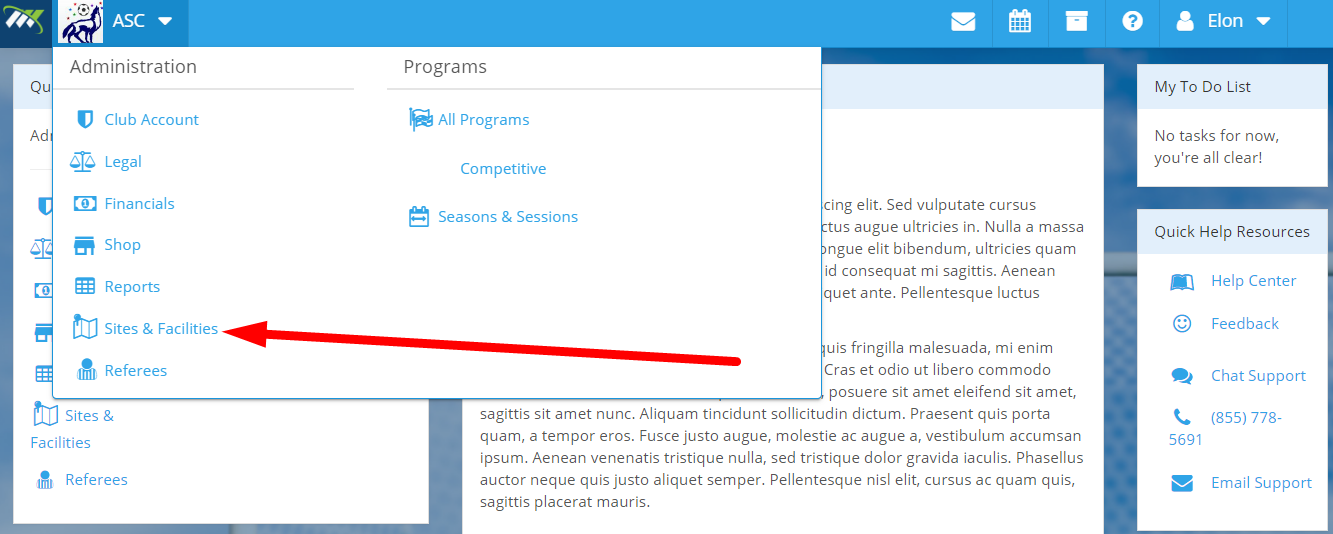
Step 1: On the dashboard, go to the Organization's dropdown menu.

Step 2: Click on the Sites & Facilities link.
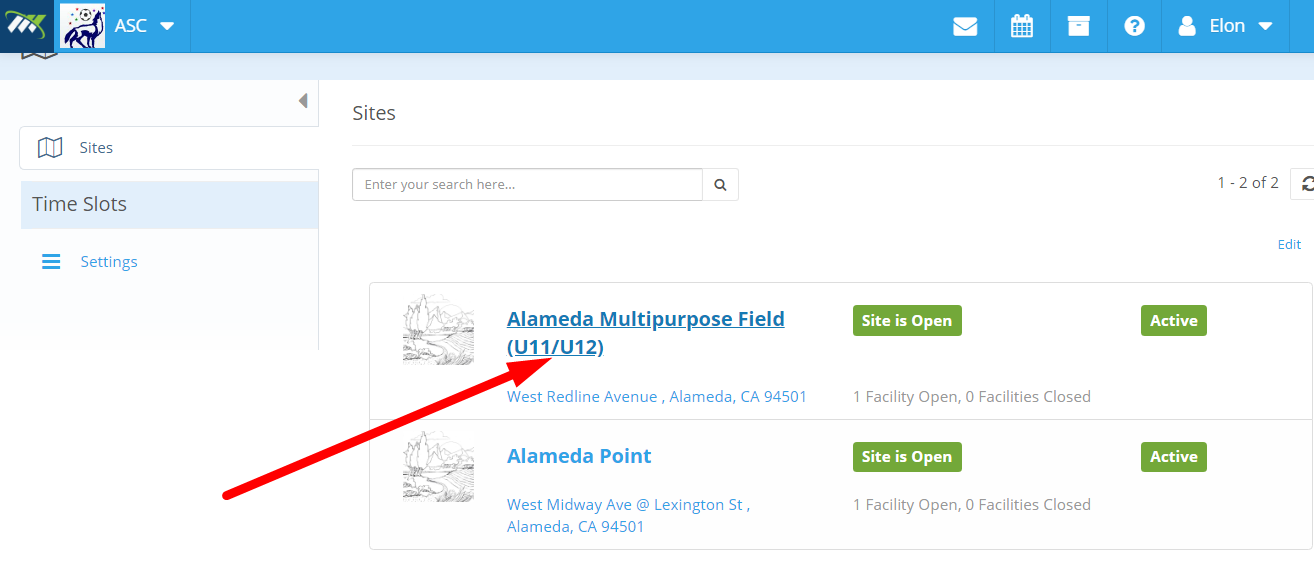
Step 3: On the following screen, click on the Site which you want to add time slots to.
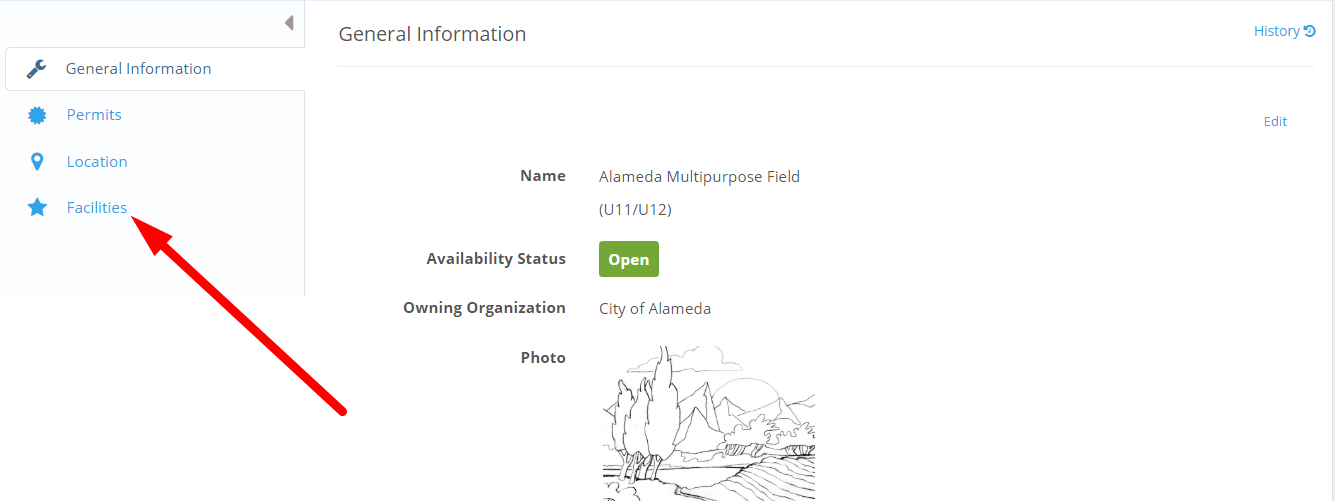
Step 4: Now, click on the Facilities link in the left-side panel.
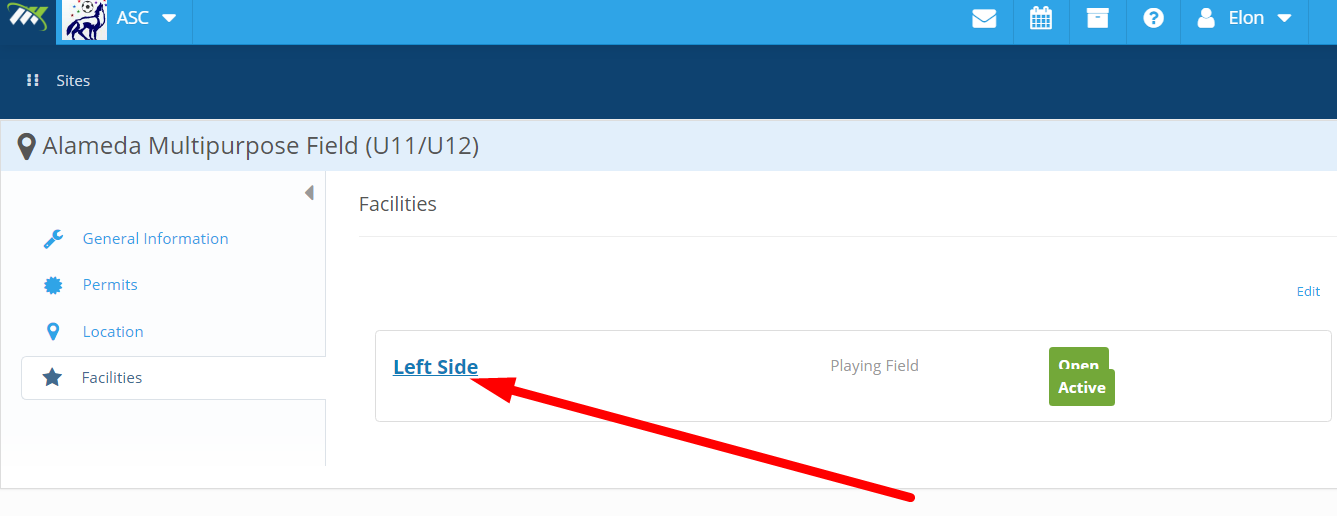
Step 5: Click on the facility that you to add the time slot to.
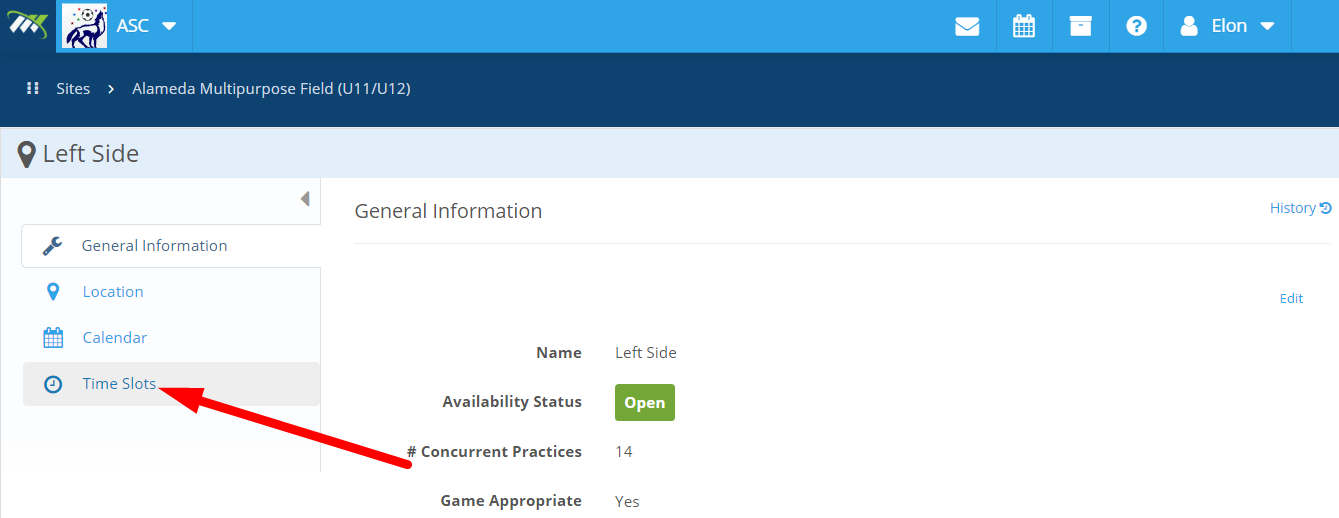
Step 6: On the following screen, go to the Time Slots.
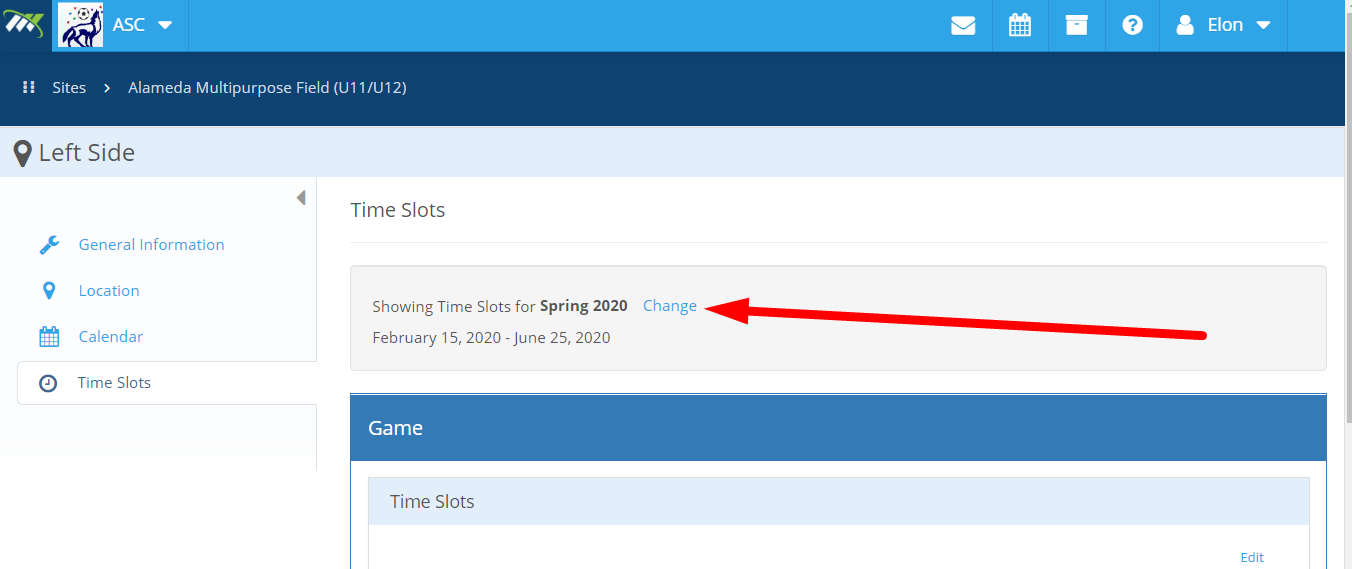
Step 7: Select the season you want to add time slots to. To do this, click on the Change button.
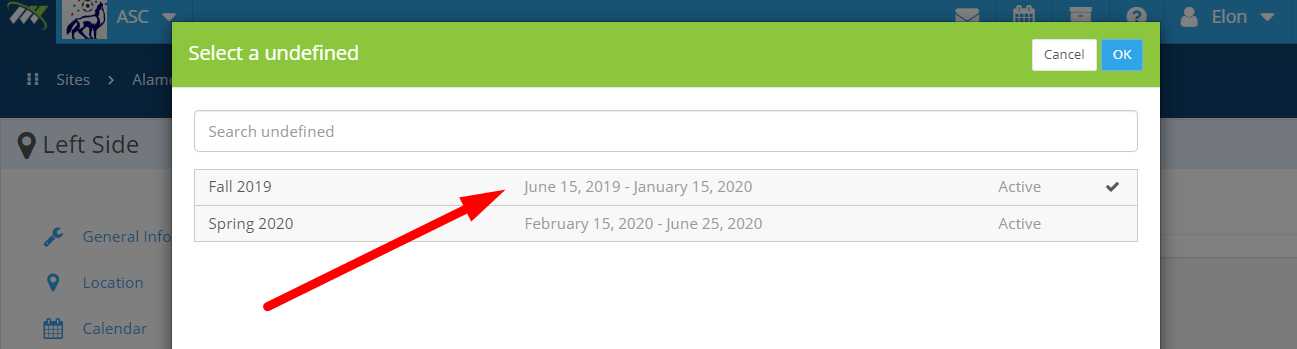
Step 8: Click on the season that you want to select.
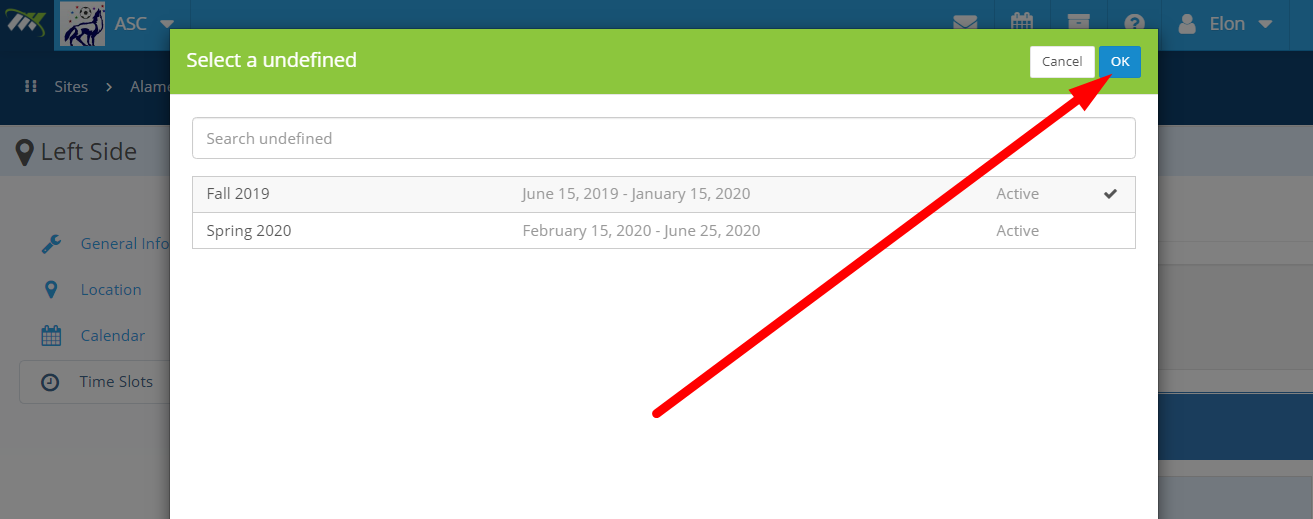
Step 9: Now, click on the OK button on the top right corner of the dialog box.
You will notice the changed season on your screen.
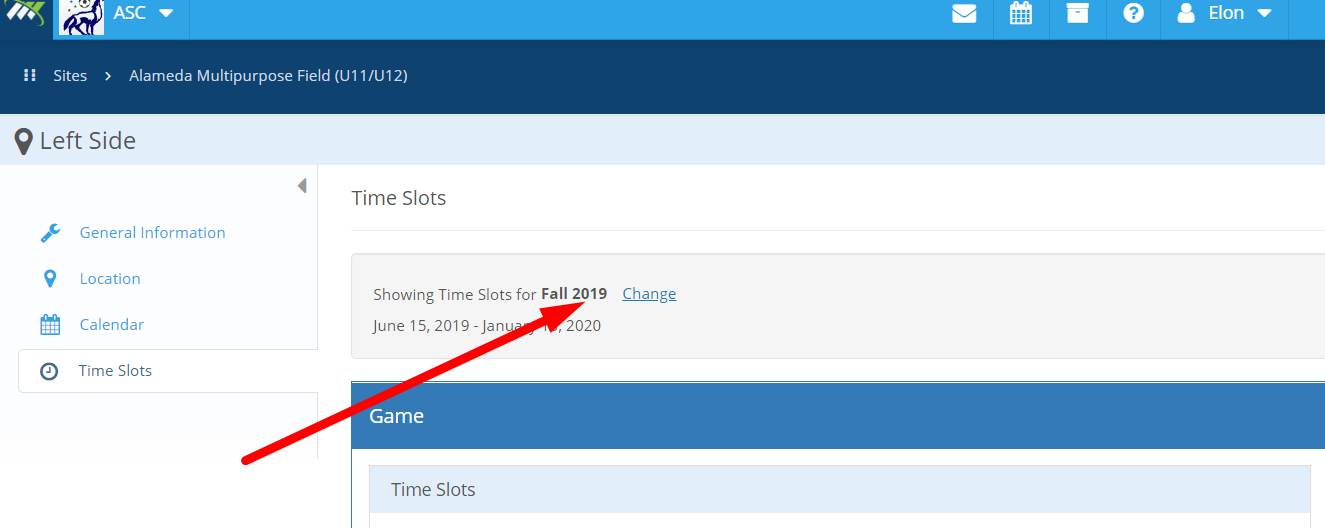
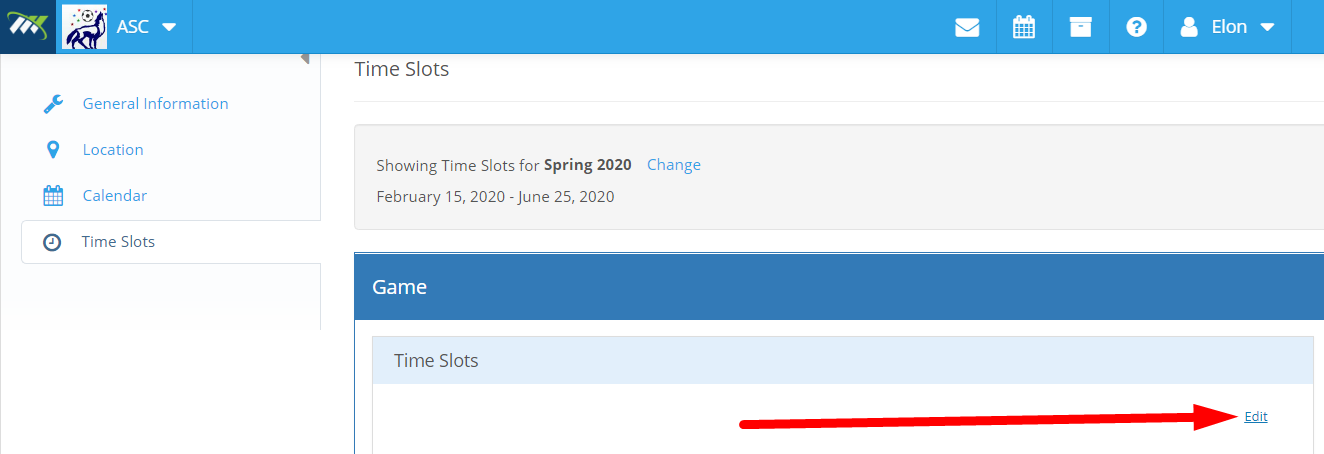
Step 10: Click on the Edit button on the right of your screen.
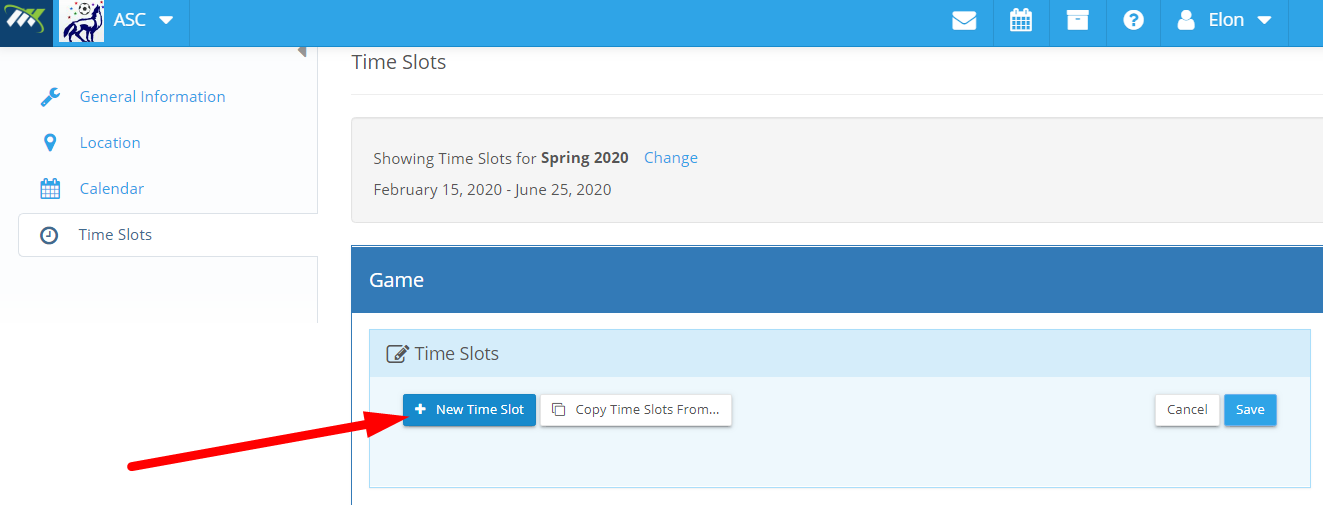
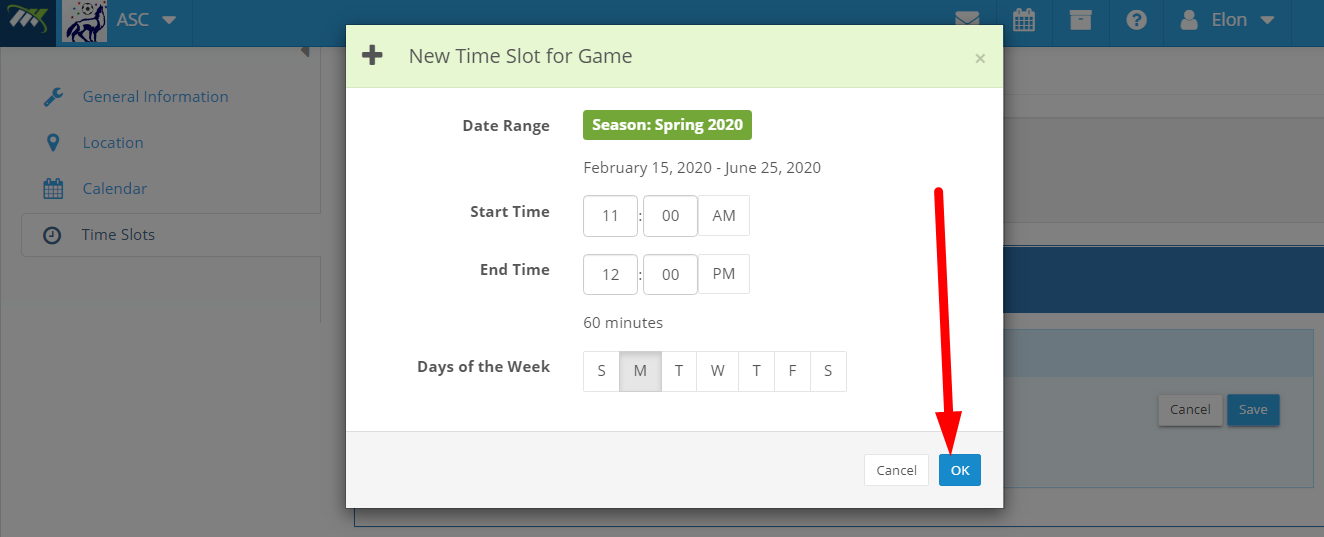
Step 11: Click on New Time Slot to add time slots to a facility or field.
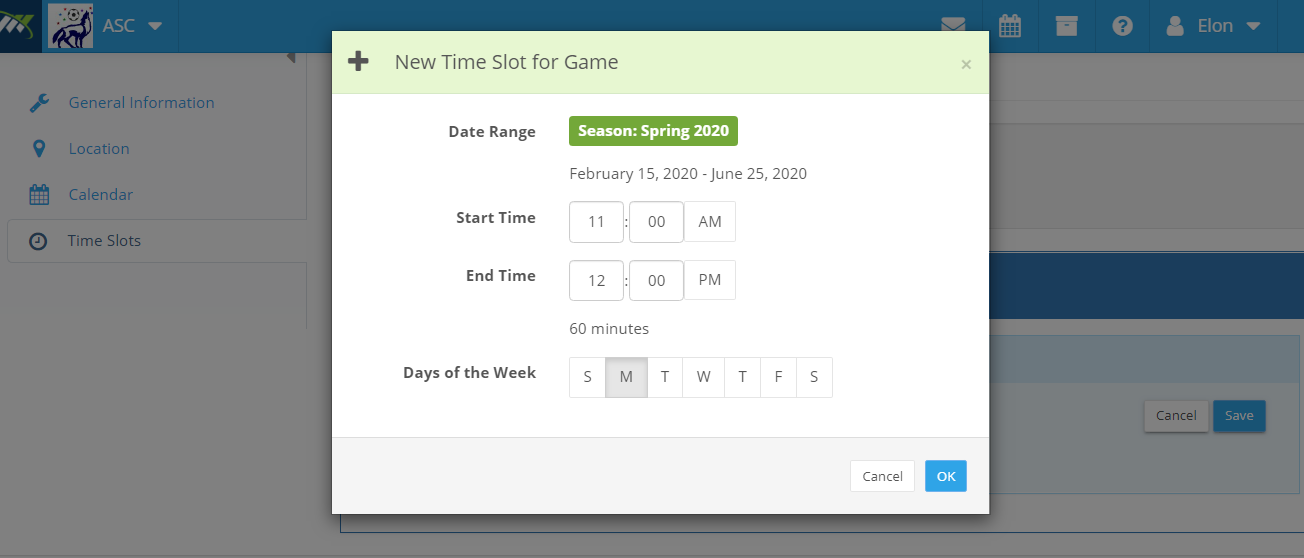
Step 12: On the following window, set the following:
- Date Range
- Start Time
- End Time
- Days of the Week
Step 13: Click on the OK button on the bottom of the dialog box.
Step 14: The time slot will show up for the facility.
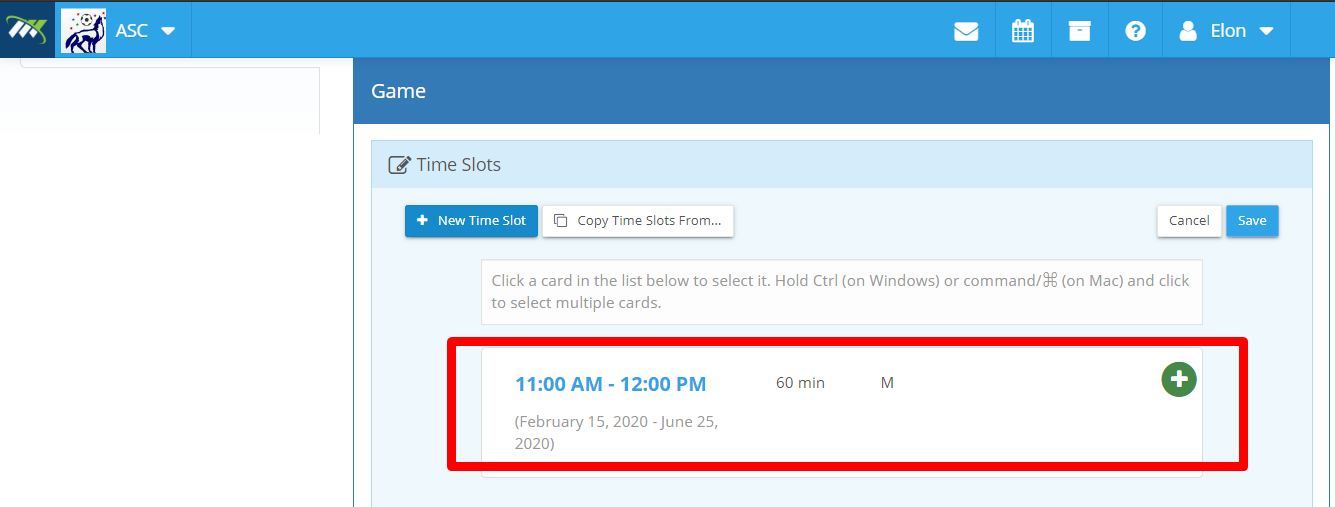
Step 15: Click on the Save button on the top right corner of your screen.

Step 16: A confirmation message Time Slot Created Successfully will appear on your screen.
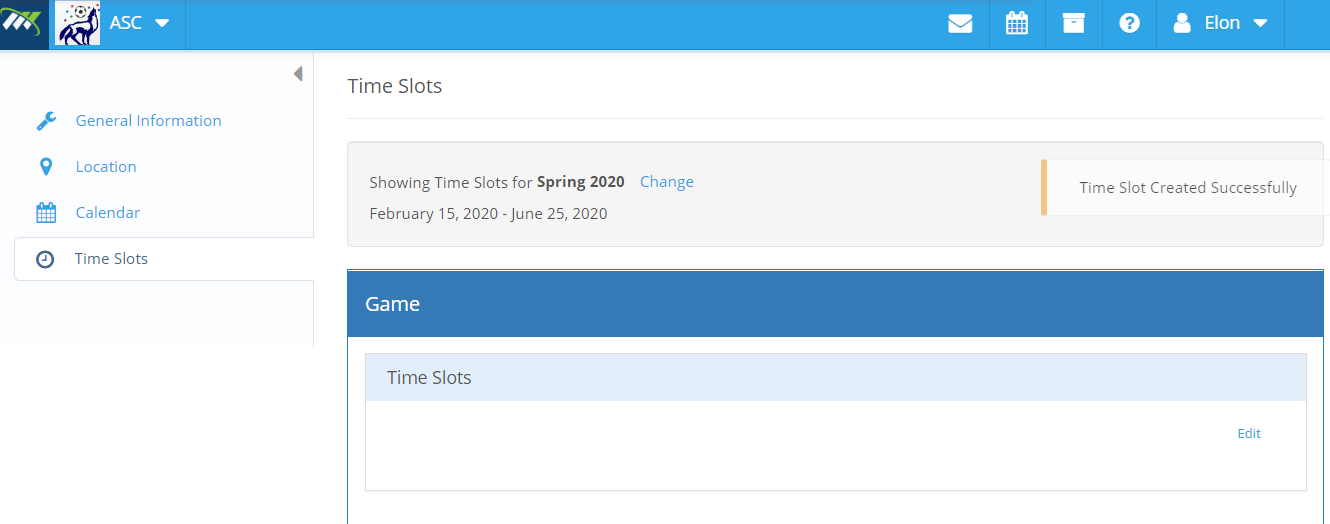
Now, you have added time slots to a particular facility (field).
Comments
0 comments
Please sign in to leave a comment.