
If a particular field or facility needs to be closed, you can do that without having to close the whole site. Follow these instructions to close or open a facility (field) on a site.
How to Close/Open a Facility (Field):
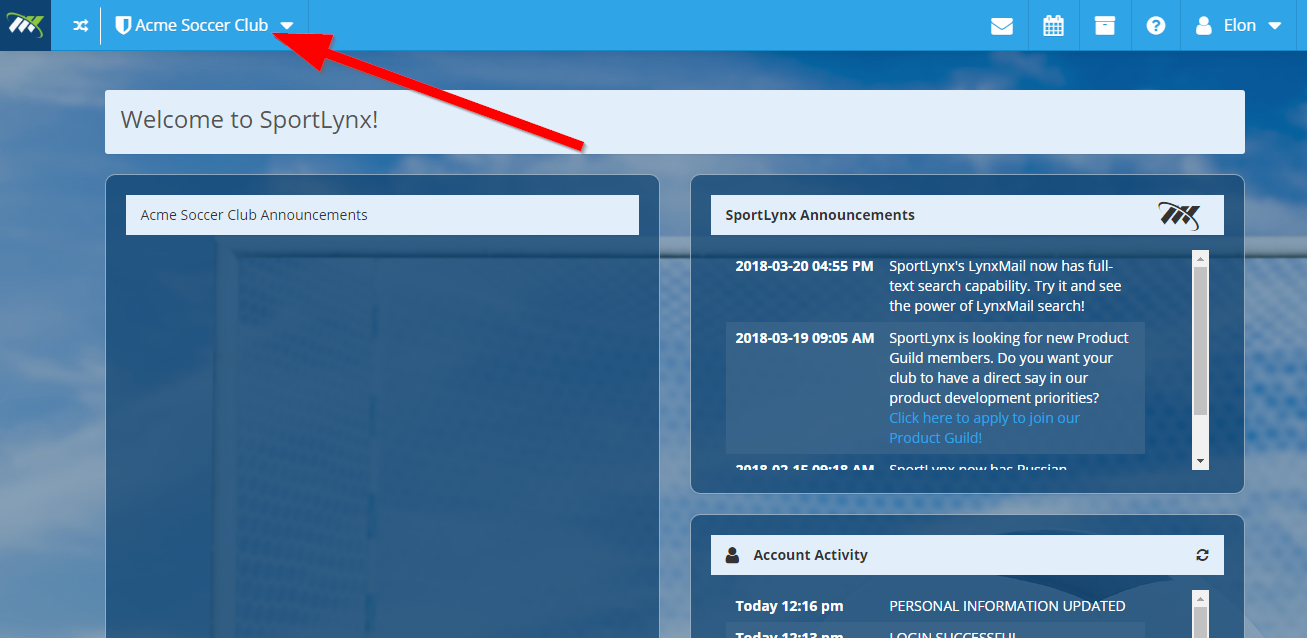
Step 1: Login to your Sportlynx account, and from the dashboard, click on your organization's drop-down menu.
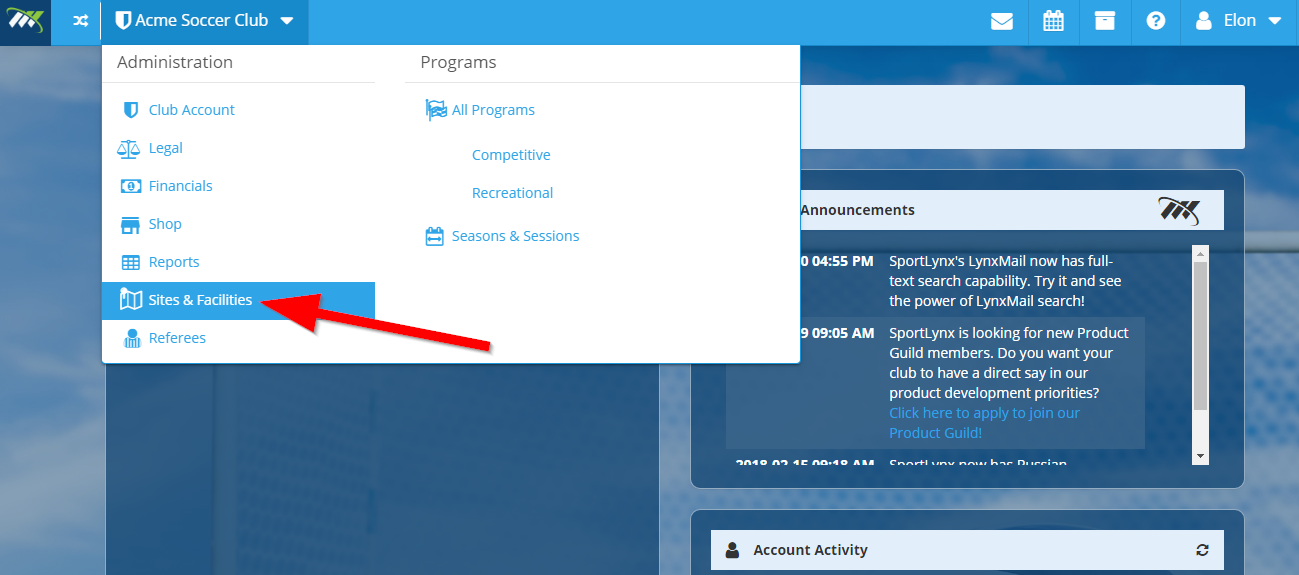
Step 2: From the drop-down list, click on "Sites & Facilities."
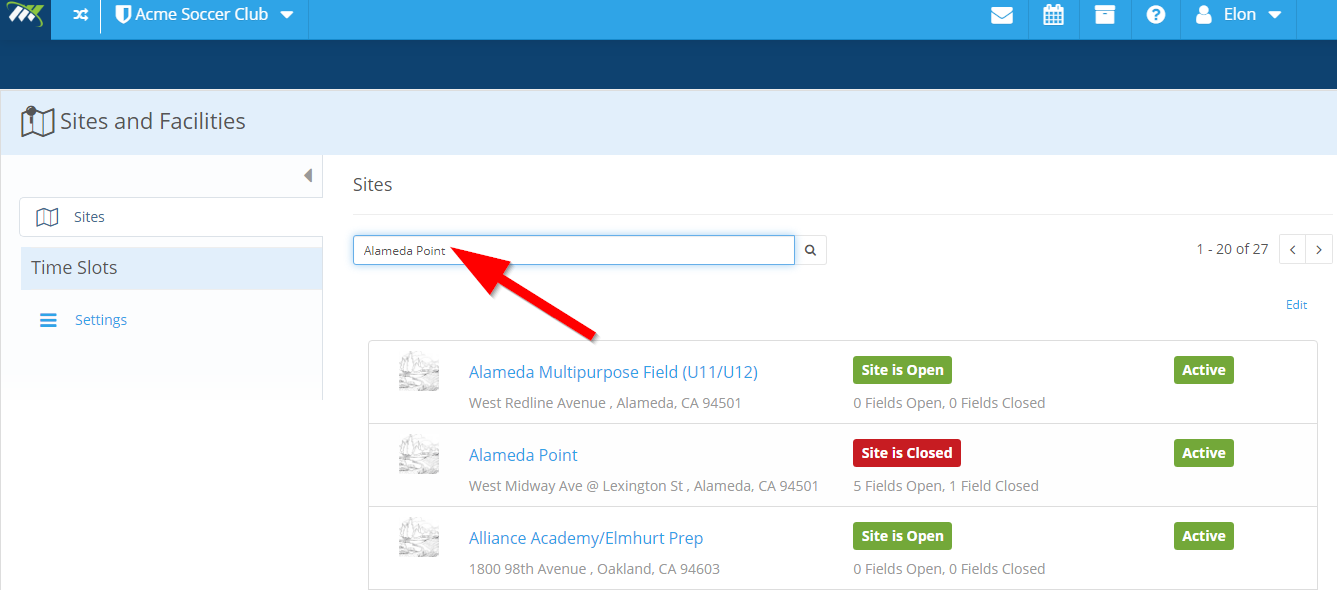
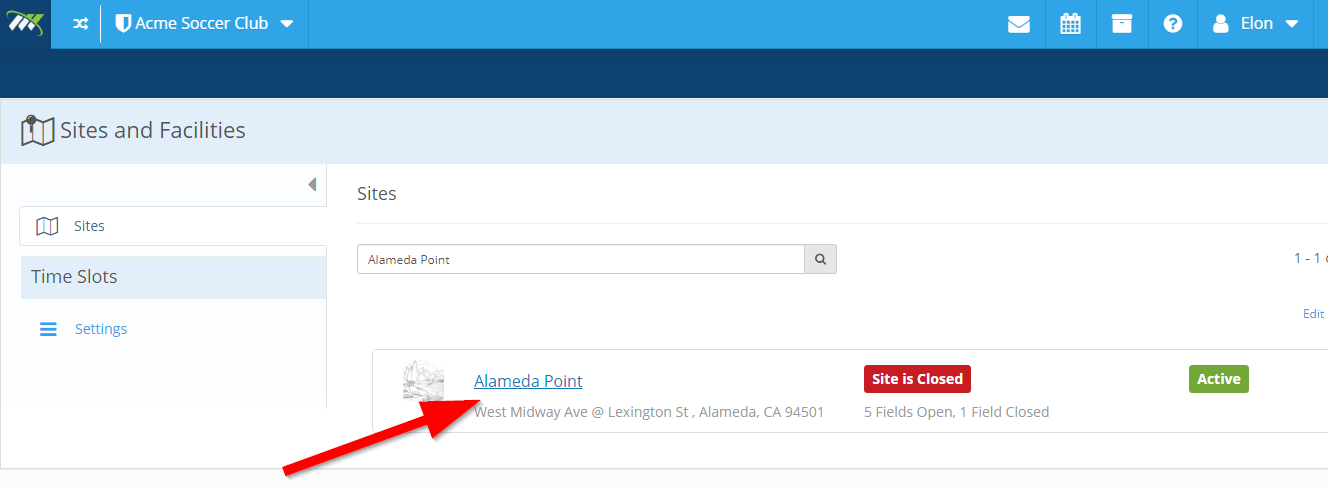
Step 3: In the search field on the top of your screen, enter any desired site you want to close or open. Let's assume, you want to close or open a facility at the "Alameda Point" site.
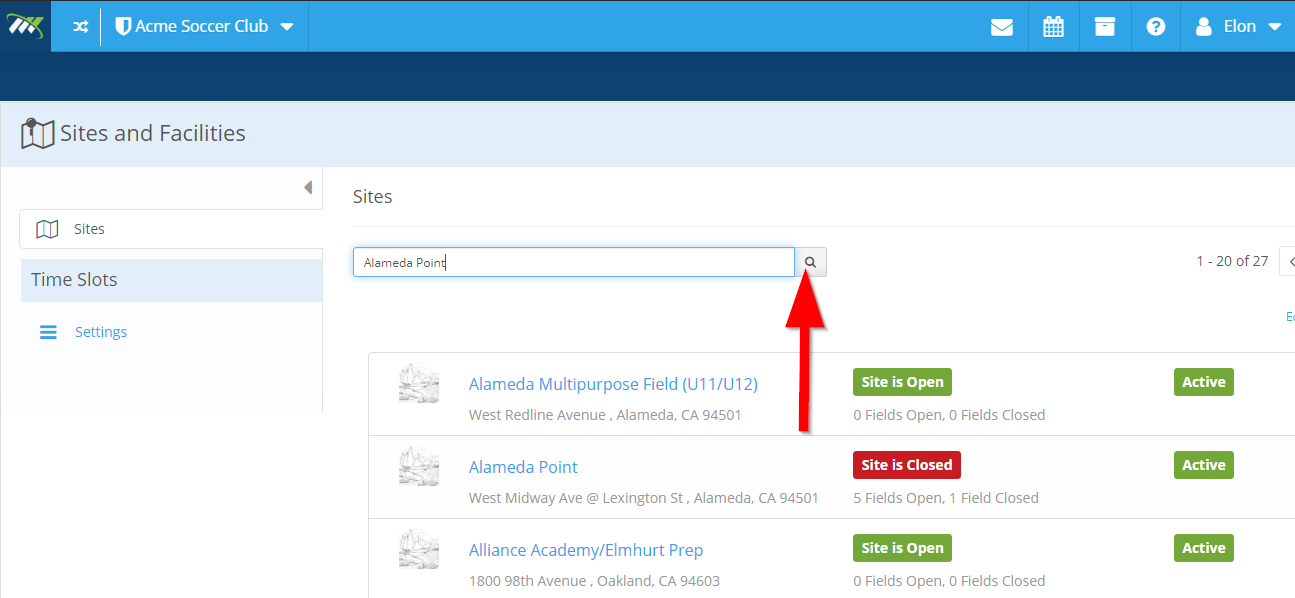
Step 4: Click on the search icon adjacent to the search box. The searched site will appear on your screen.
Step 5: Click on the name of the site.
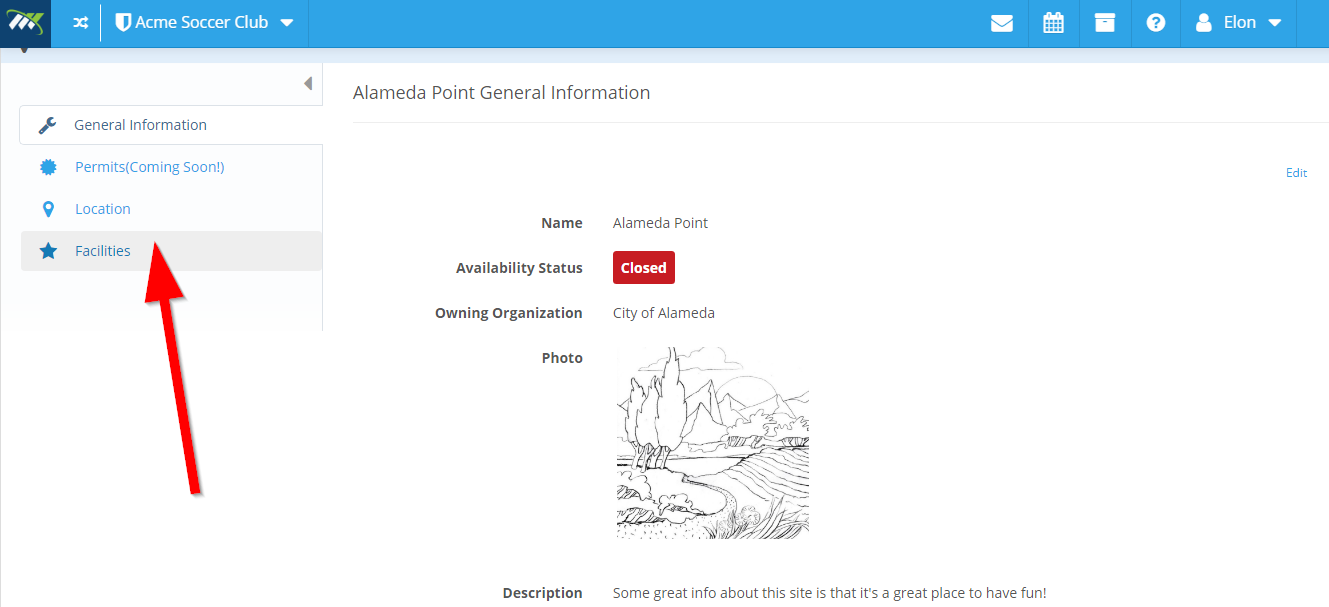
Step 6: Click on the facilities in the left bar.
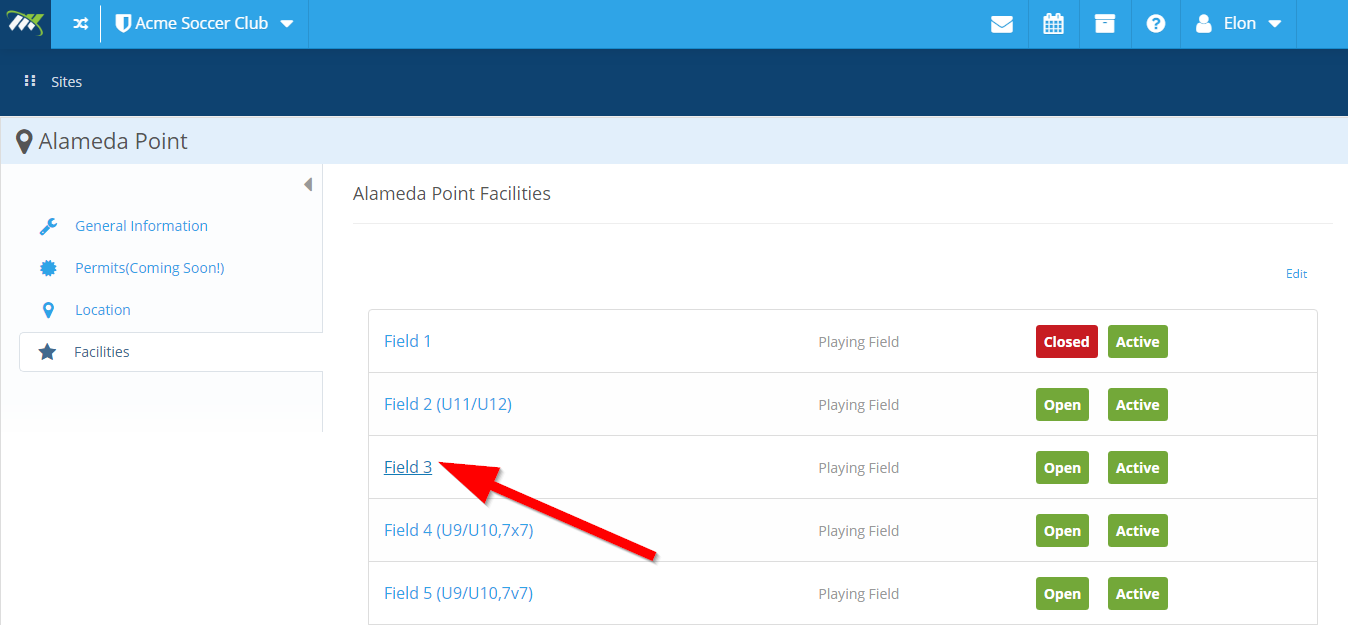
Step 7: On the following screen, click on the name of the facility you want to close or open.
Step 8: Now, click on "Edit" on the right.
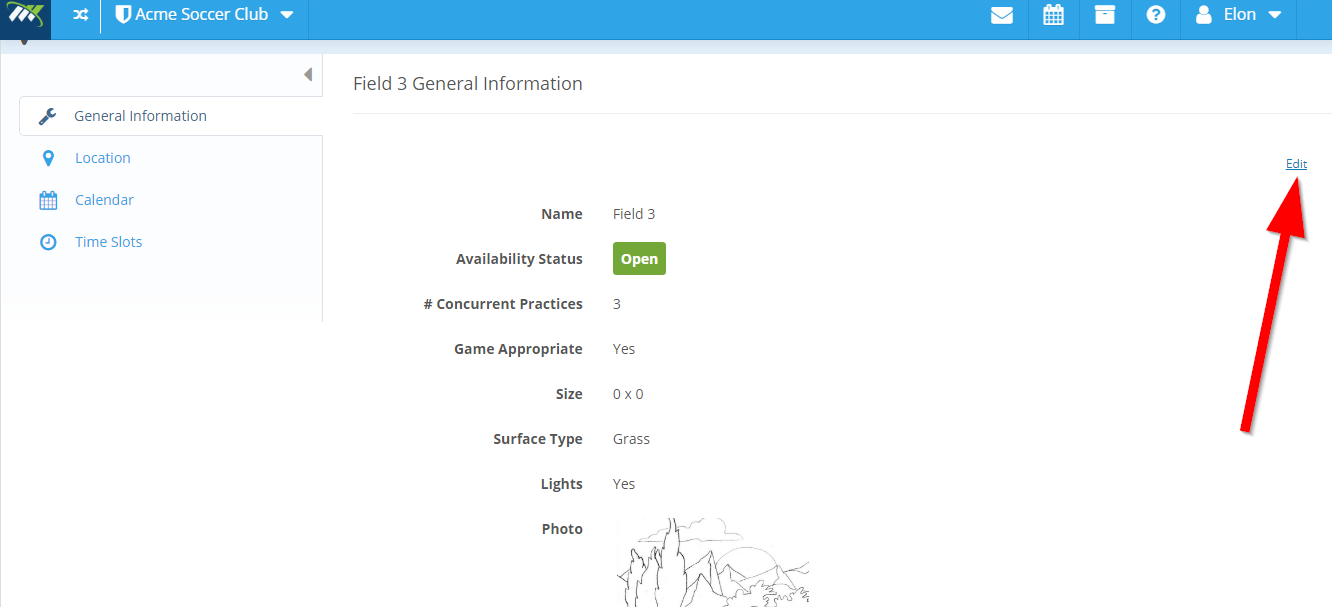
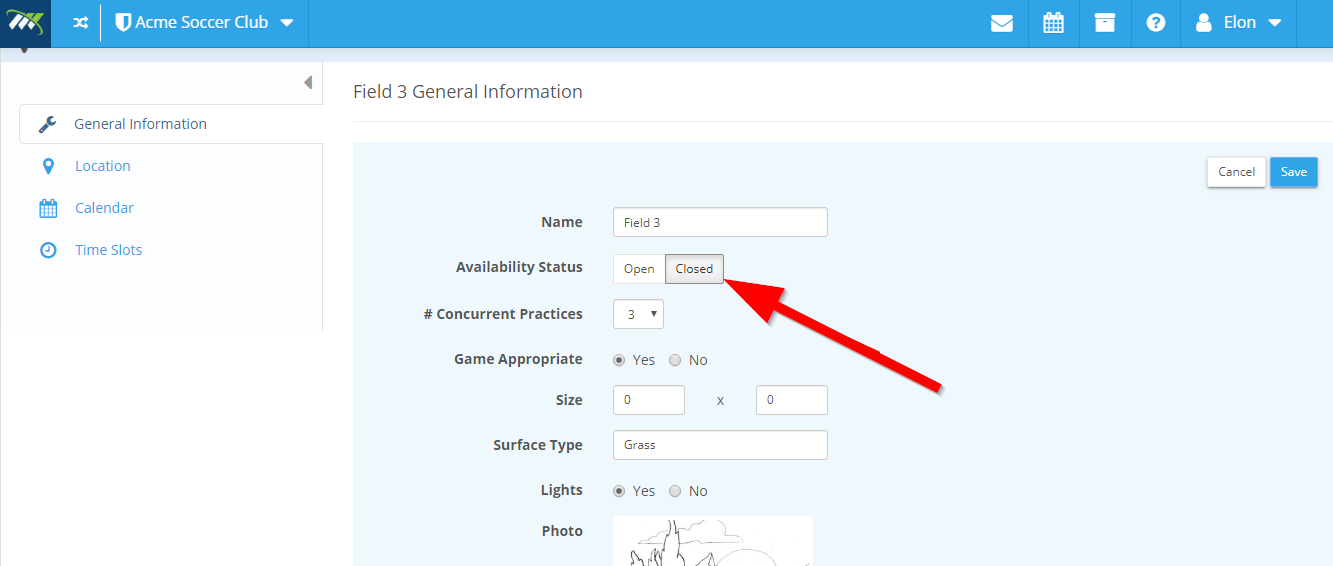
Step 9: Use the toggle button to open or close the facility. For instance, in this example, we will turn the Field 3 facility as closed because it is inaccessible at the moment.
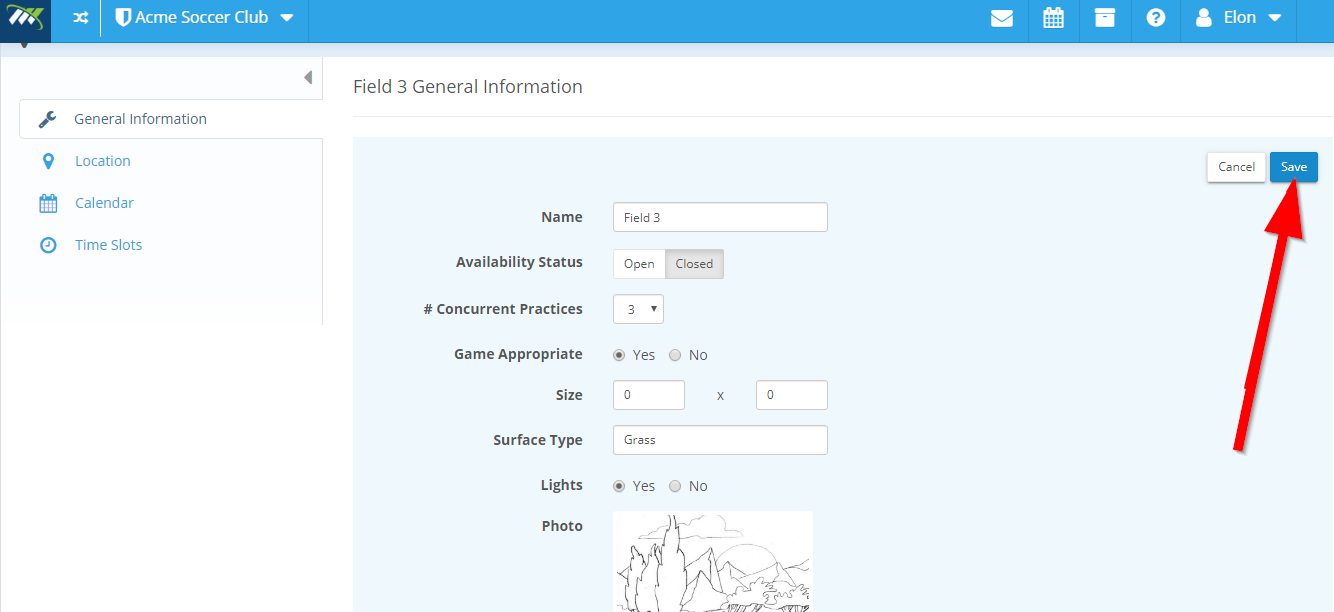
Step 10: Click on the "Save" button on the right.
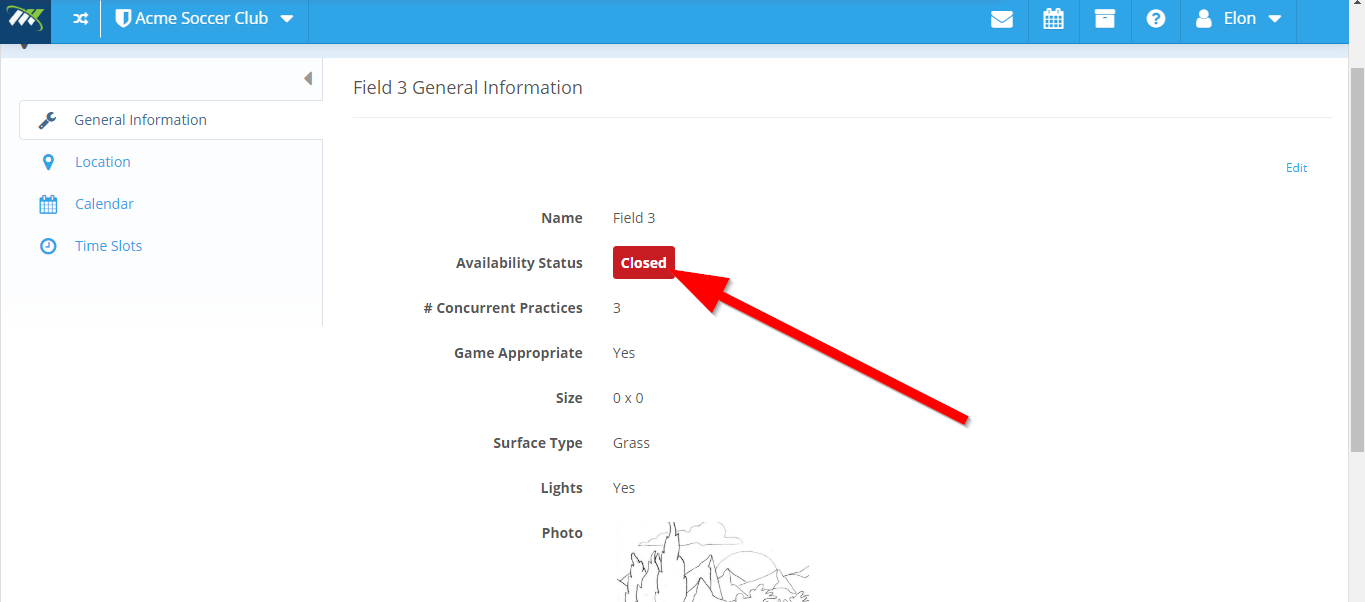
The facility will appear as closed.
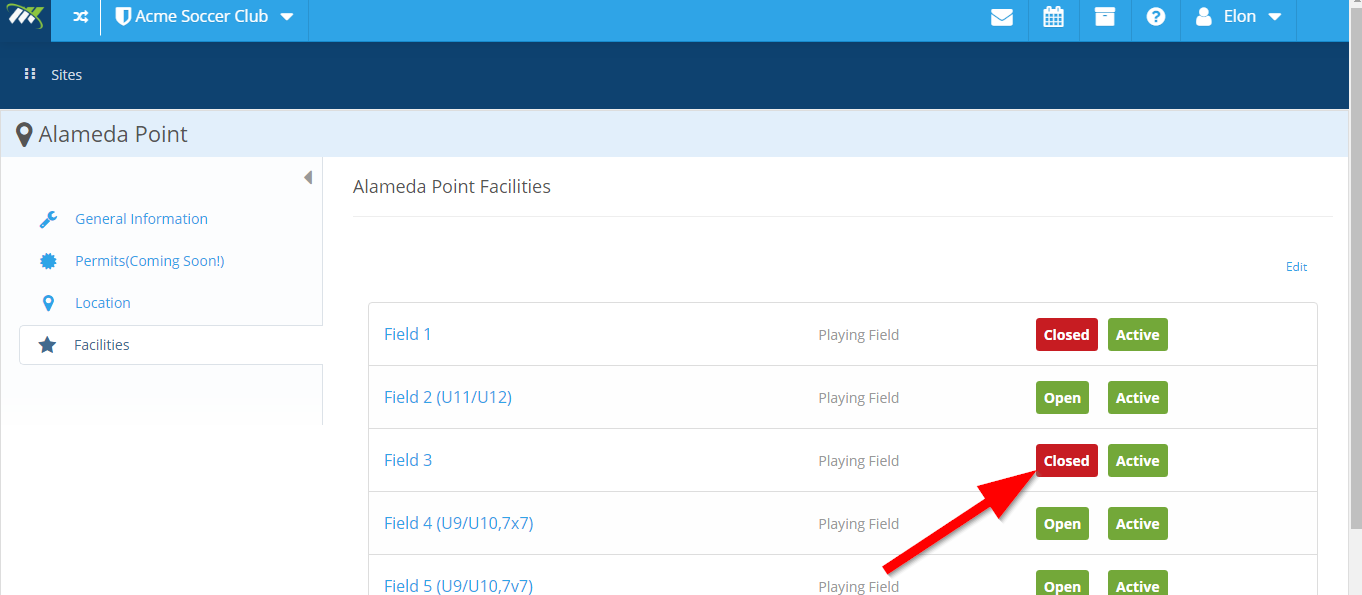
It will also appear as closed in the list of facilities for that site.
Comments
0 comments
Please sign in to leave a comment.