
You can edit the information about a field or facility.
Here is the step-by-step process for editing field information.
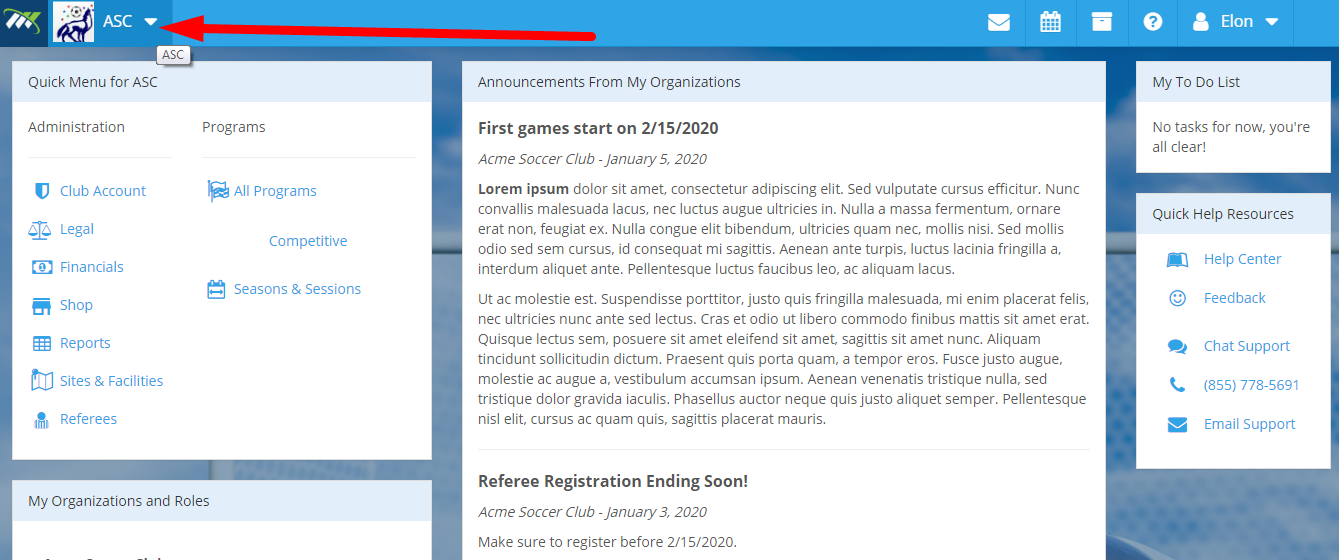
Step 1: Login to your Sportlynx account. Now, on the dashboard, click on the Organization's ASC dropdown menu.
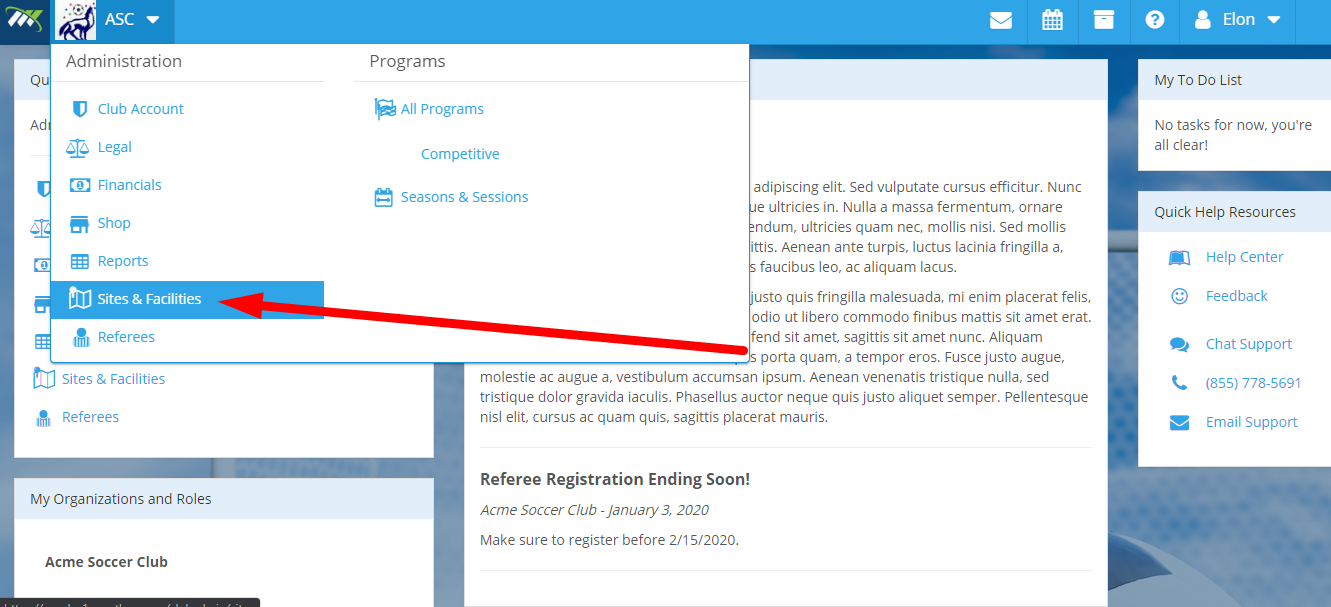
Step 2: Now, click on Sites & Fields.
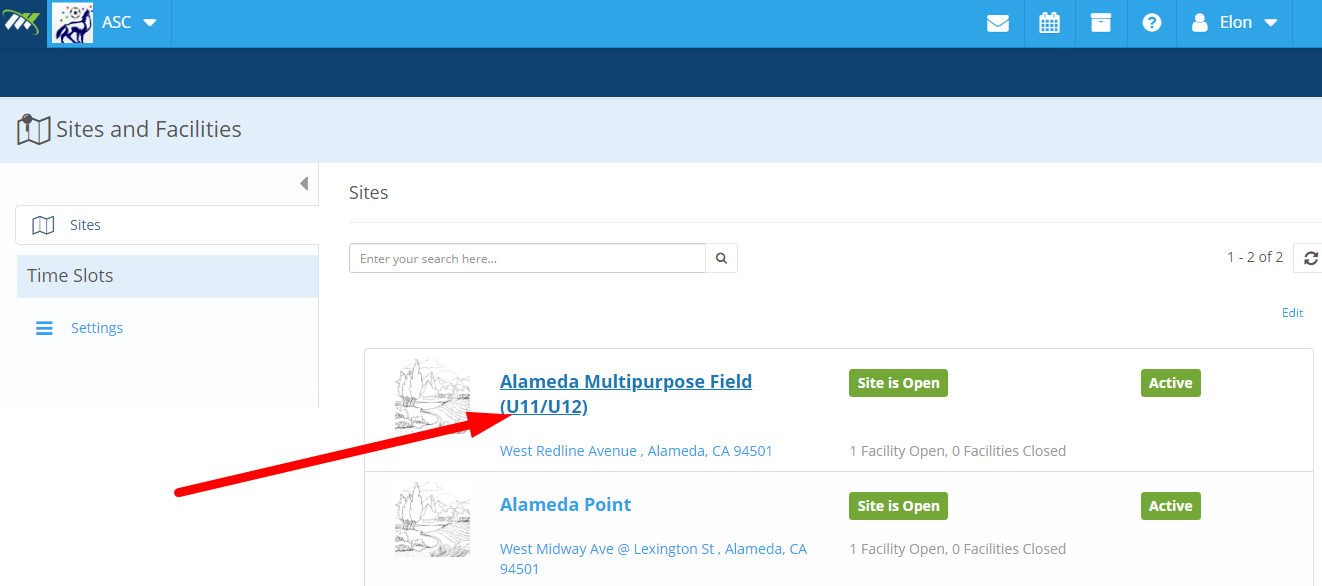
Step 3: On the following window, you will see the list of sites. Click on any desired site that you want to update.
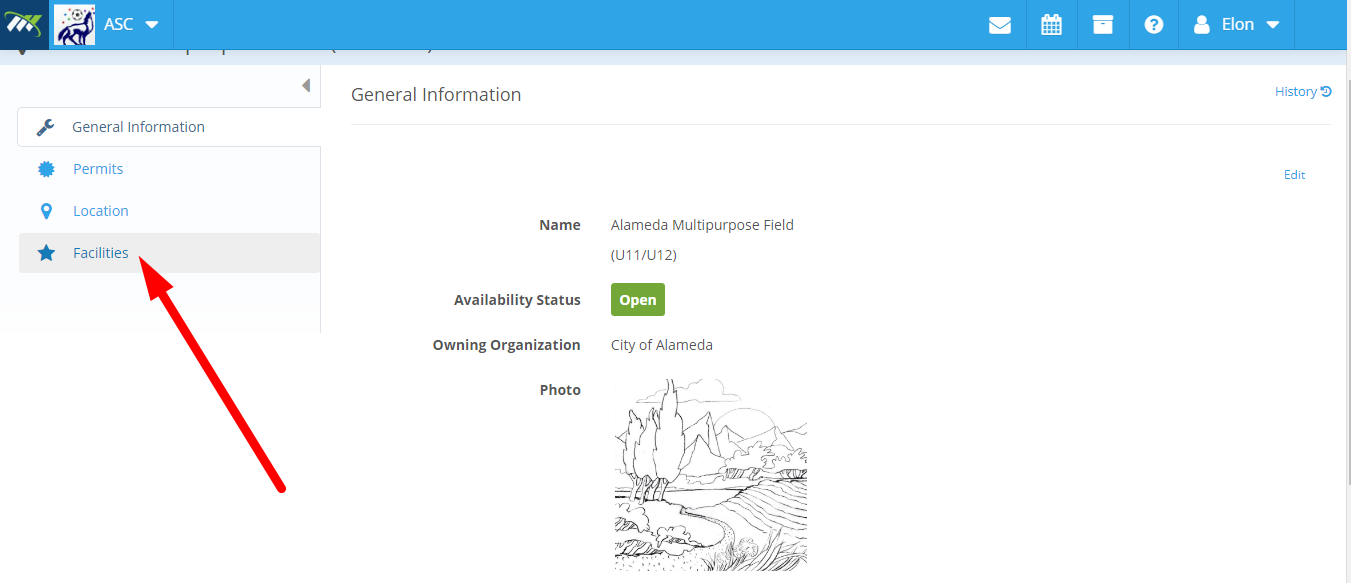
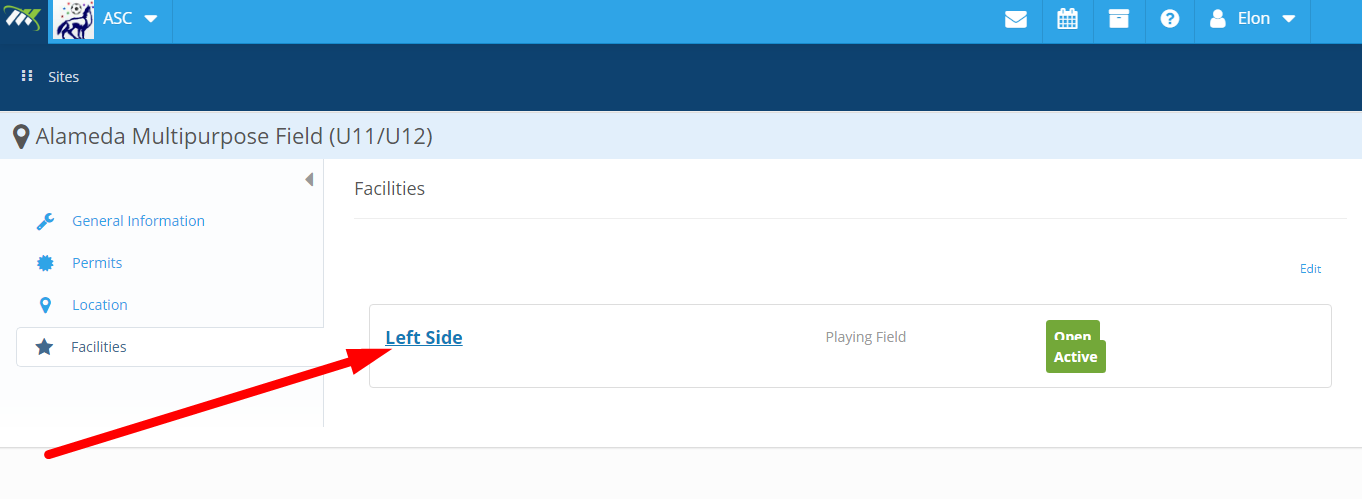
Step 4: Now, in the left-side menu, click on the Facilities link.
Step 5: On the following screen, you will see a list of facilities. Click on the facility that you want to update or edit.
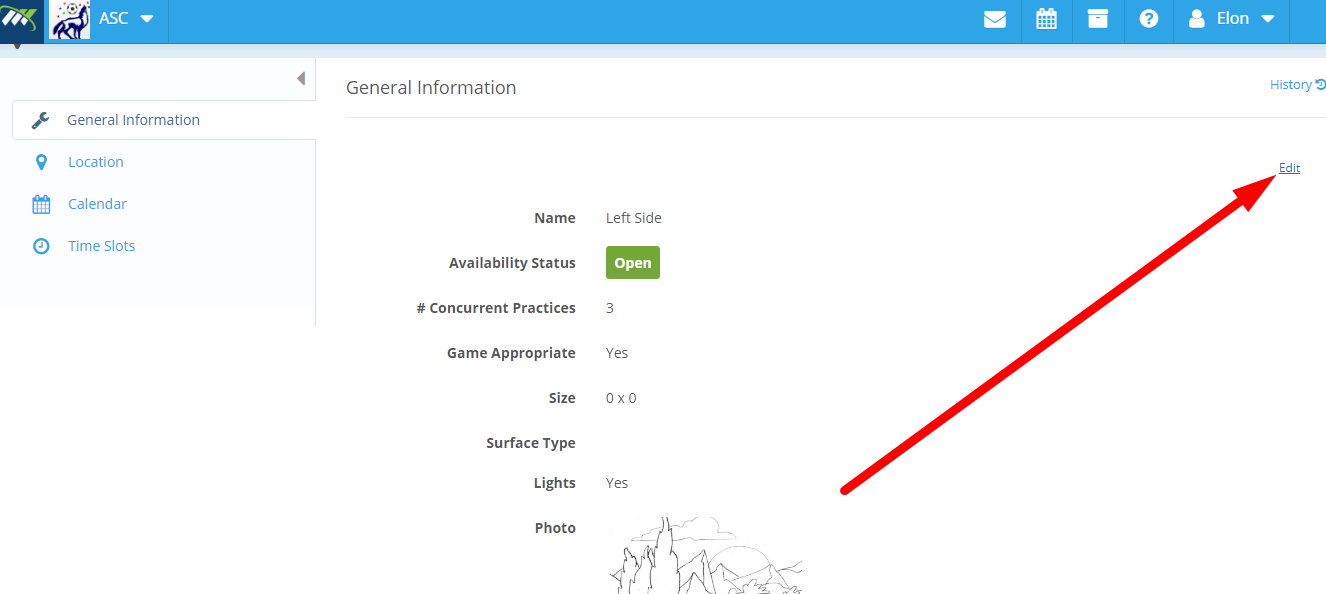
Step 6: Now, in order to edit the information, click on the Edit button on the right corner.
Step 7: Now, you will be able to edit the following information:
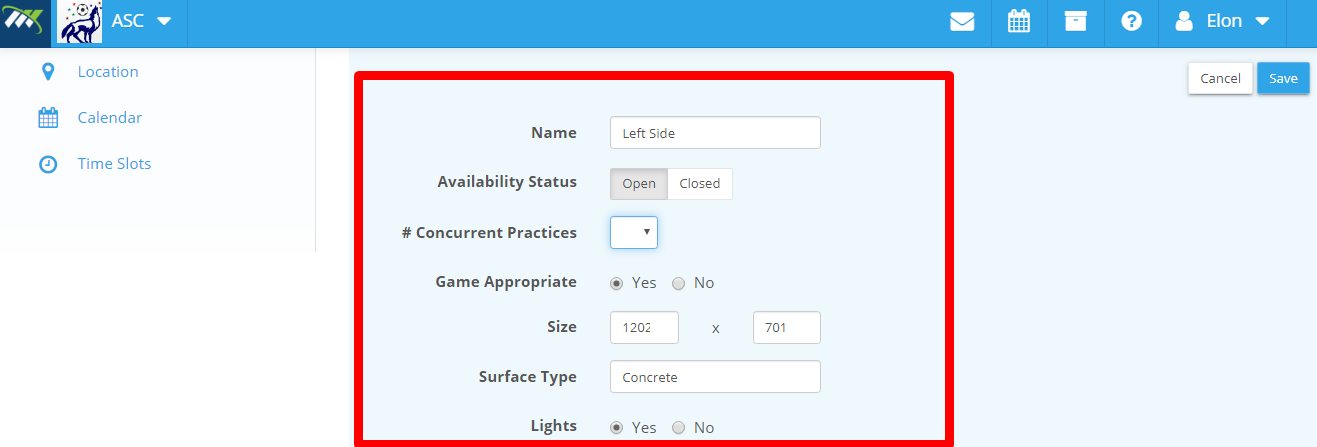
- Name Name of the facility.
- Availability Status: Use the toggle button to set the availability status of the facility.
- Concurrent Practices: Set the number of teams that can practice in the facility at the same time.
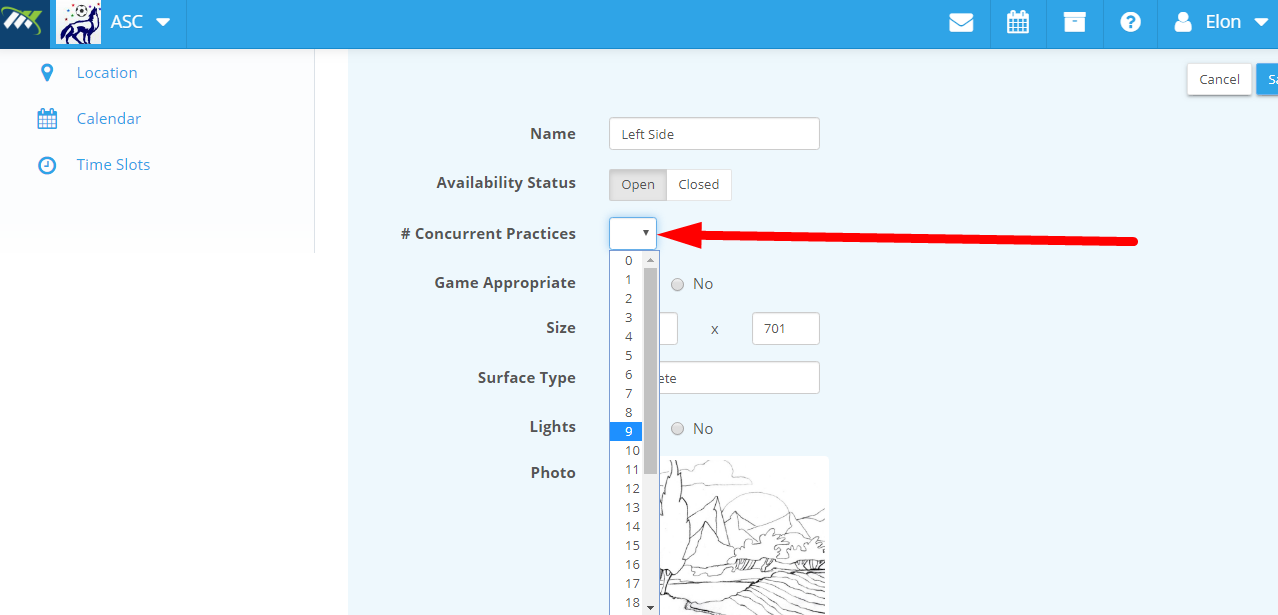
- Game Appropriate: Set if the facility appropriate for games.
- Size: Enter the dimensions of the facility.
- Surface Type: What type of surface the facility has.
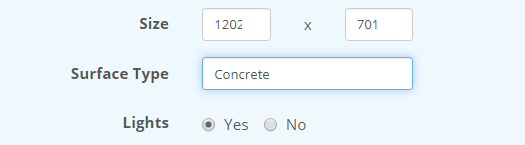
- Light: Does the facility has lighting arrangements?
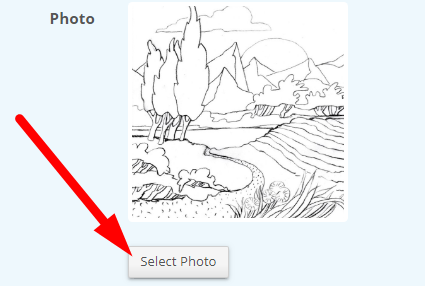
- Photo: Upload the photos of the facility.
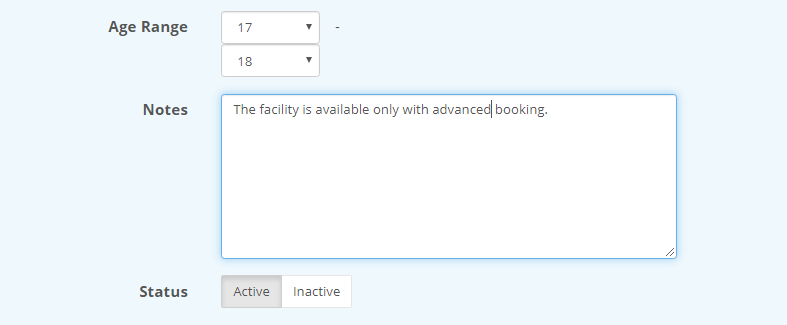
- Age Range: Enter the age range for which the facility is suitable.
- Note: Enter additional information related to the facility.
- Status: Is the facility active or inactive.
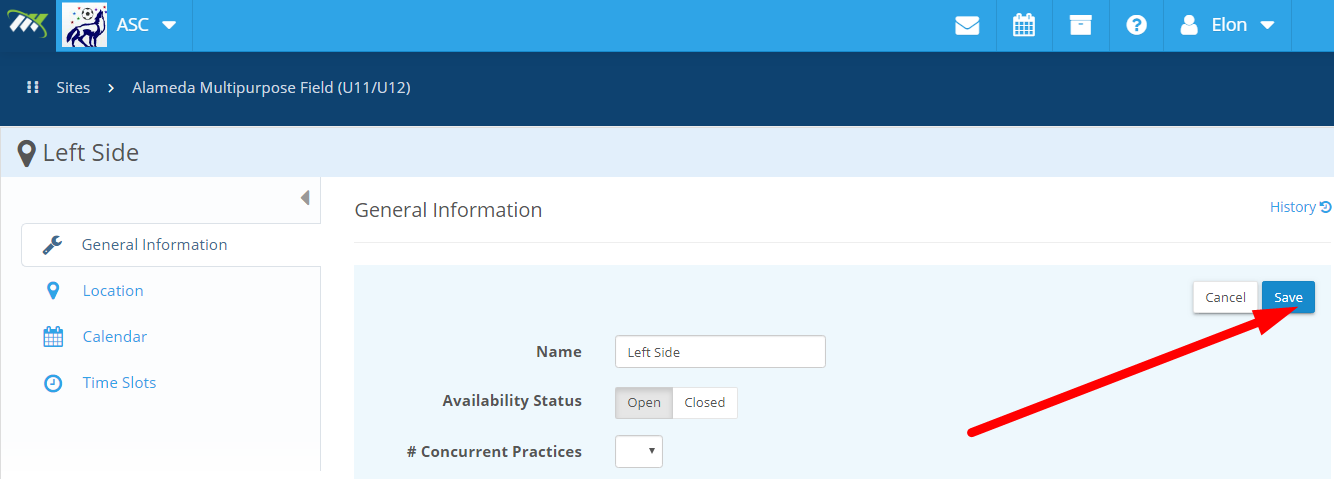
Step 8: Once you have edited the required information, click on the Save button on the right corner to save the information.
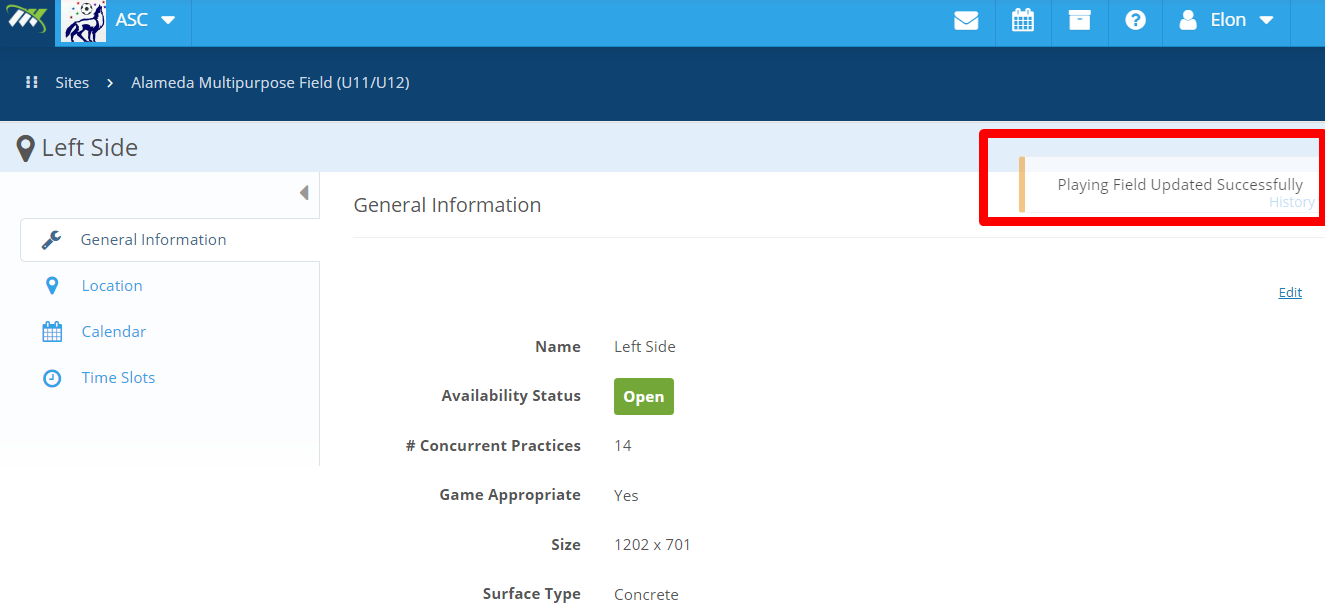
Step 9: You will receive a confirmation message "Playing Field Updated Successfully."
You have now updated the field information.
Comments
1 comment
I am looking for the instructions on how to edit an age group from a scheduled match. I need to change from Girls U12 to Girls U14. Please provide instructions:
Thanks,
Alex Delgado
EC Revolution Assignor
925-595-1481
asd1167@yahoo.com
Please sign in to leave a comment.